

Head Chef 1 User Guide · Chapter 14
Jam Console
Jam Console is an independent window for trying musical ideas. Roll an eight-bar backing band, connect your guitar or microphone and play along. Recording is optional. You can audition different chords, keep takes with the jam and send the result to Studio as ordinary tracks.
Open Jam #
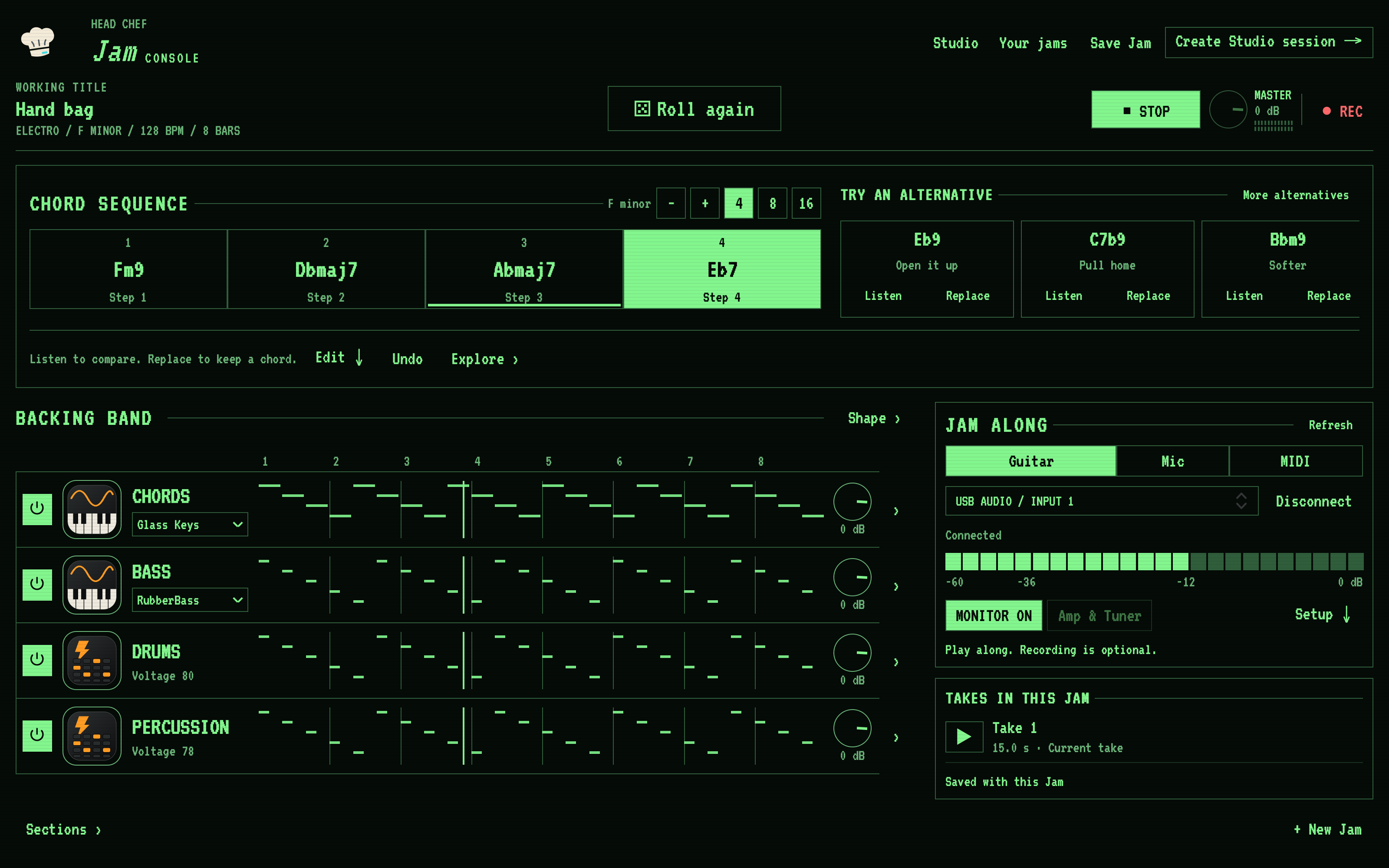
Jam opens in its own window. You do not need a Studio session to generate, play or save a jam. The chord sequence sits directly below the transport, with the backing band and Jam Along input underneath.
- Click Jam ↗ in the Studio toolbar. If no jam is open, Head Chef starts a new one.
- Click Your jams to see saved jams, then Back to Jam to return to the open jam.
- Click Studio to bring Studio forward. Jam stays open, and an existing session keeps its edits and playhead position. Opening Studio stops Jam playback. In Studio, its Play button or Space plays the Studio session, even if you were most recently working in Jam.
When no session is open, the start screen also offers Start a jam. The Studio window hides while you jam. Closing a Studio window does not close Jam.
Find your way around the Console #
| Area | What you do there |
|---|---|
| Jam name and transport | Check the musical context, play or stop the backing, roll another idea, record and save. |
| CHORD SEQUENCE | Select a chord, try an alternative or open the detailed harmony controls. |
| BACKING BAND | Follow each part's notes, choose chord, bass and drum sounds, and adjust the playing mix. |
| JAM ALONG | Choose and connect your audio input, watch its level, turn monitoring on and set the count-in. |
| TAKES IN THIS JAM | Listen to recordings, return to an earlier backing and check whether your takes are saved. |
Jam Along #
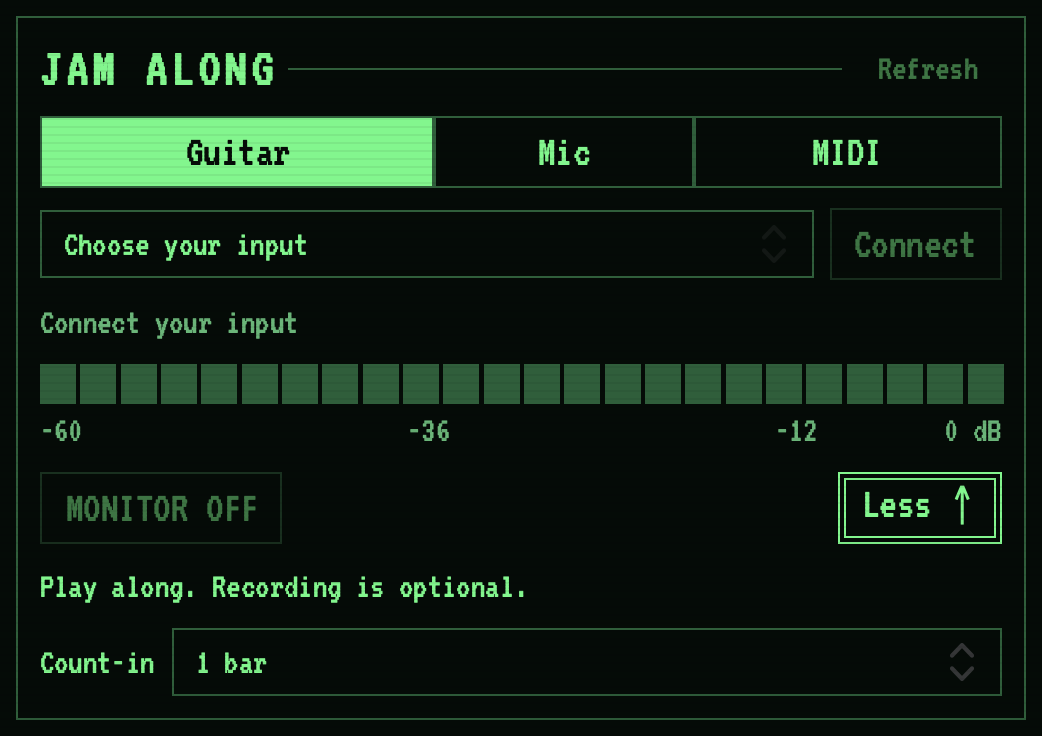
JAM ALONG puts your instrument beside the backing band. The audio input meter and monitoring work before you record.
- Choose Guitar or Mic. Jam checks for audio inputs automatically; wait for Checking audio inputs to finish, then choose your device and physical input channel. Checking the list does not connect or monitor your input.
- If you connect another device or see No audio inputs found, click the visible Refresh button beside the input controls. If checking fails, follow the message and try Refresh again.
- Click Connect and allow microphone access if prompted. Wait for Input ready.
- Play or speak and watch the input meter. If CLIPPING appears, lower the input gain on your microphone or interface.
- Click MONITOR OFF to hear your input through Head Chef. The control changes to MONITOR ON. Click it again to turn monitoring off.
- If a backing idea is open, click ▶ PLAY and play along. Stopping Jam playback leaves input monitoring available while the input is connected.
Shape your input with Amp and Tuner #
Click Amp in JAM ALONG to open the input's amp. Choose a supplied sound in Library, import a NAM model or cabinet, or adjust Input Drive, Bass, Mid, Treble, the noise gate and Output. Bypass lets you hear the input without the amp sound. These controls affect your instrument; the backing band and click keep their own sound.
Turn input monitoring on to hear the amp. Tuner listens to the connected input. Silent Tune mutes Head Chef's instrument monitoring while you tune; it leaves the backing and dry recording running. An interface's own direct monitor must be controlled at the interface.
Choose your sound before starting a recording. Amp sound controls are unavailable during recording and while a take finishes. Tuning remains available. Jam does not record amp automation; use a Studio amp insert for musical automation.
Jam keeps the original dry input. When you play a retained take, it uses the current saved amp sound, so changing the sound also changes how earlier takes play. Save Jam keeps the sound and its model/cabinet assets with the jam. Open editable tracks → copies each dry input take into Studio with a matching amp insert, where you can continue editing its sound.
Record an optional take #
The small recording control sits beside ▶ PLAY. Connect your input first; you can record with a backing idea or in free time.
- With a backing idea open, use Setup ↓ to choose a Count-in: No count-in, 1 bar, 2 bars or 4 bars. It starts at 1 bar and also controls the cue before Roll again.
- Click ● REC. Head Chef prepares the current backing if needed, then starts the count-in and recording. Finish any in-loop chord preview, volume-dial drag or Roll count-in before recording.
- Click ■ STOP REC when you finish. Wait for Finishing take to complete. The count-in is excluded from the saved audio.
- The take appears under TAKES IN THIS JAM, with its duration and Current take status. Click its play icon to listen.
- Record again to keep another take. Earlier takes remain available as Retained.
- Click Save Jam to keep the recordings with the jam. The take panel shows Save Jam to keep these takes, Saved with this Jam or Unsaved changes, so you can see whether your current work is saved.
The recording uses the current idea's loop as its backing. It does not play the stored section arrangement. The take remembers the backing that played, so you can return to it after changing the idea.
For free-time recording, connect your input before rolling an idea and use the same recording control. You do not need a tempo or bar grid. Afterwards, keep the take as it is or roll an idea to add a backing band. Keep recording for as long as you need, then Stop when you have finished. Leave enough free disk space for recordings and saved copies. Stopping before any audio is captured leaves the previous takes unchanged.
Play a MIDI instrument #
Choose MIDI in Jam Along to open the MIDI information, then click Open Studio →. Open a Studio session and select an instrument track to play your keyboard. To take the backing band with you, use the Jam's Studio transfer control described in Use a jam in Studio. Jam's recording controls capture audio; MIDI input and recording use Studio. See MIDI and instruments.
Start a new jam #
Each roll chooses chord and bass sounds to suit the groove. Short offbeat chords favour Mallet with Rubber Bass; other patterns explore suitable keys, pads and bass sounds. Opening a saved jam keeps its stored sounds. Each new roll receives a fresh working title shaped by its style and vibe. It fits the header and avoids names already in Your jams or the recent rolls. Previous roll restores that idea's title with its music. You can keep or change the current title when saving.
- Click + New Jam below the Console, or in Your jams.
- Under MAKE A START, click ▶ ROLL AN IDEA for an eight-bar backing band. A one-bar metronome cue counts in and the band starts playing by itself, the same cue Roll again uses. You can also connect your input and play or record in free time before rolling an idea; a roll made during a free-time take leaves the take running.
- Choose a chord sound from the visible selector on the Chords row. Choices include Glass Keys, Tine, Reed, Clavinet, Electric Grand, Studio Grand, Rounded Grand, Drawbar, Nylon Guitar, Steel Guitar, Small Section, Broad Section, Soft Bell, Mallet, Digital Brass, Air Pad and Octet. Madre is unavailable in Jam. On the Bass row, choose Substance or Mini Bar's Rubber Bass. On the Drums row, choose Voltage 80 or Mini Bar's Arcade Kit or Digital Kit.
Roll a backing band #
BACKING BAND contains four parts: Chords through your selected Mini Bar or Octet sound, Bass through Substance or Mini Bar Rubber Bass, Drums through Voltage 80 or a Mini Bar drum kit, and Percussion through Voltage 78. A roll chooses style, tempo and vibe together. The readout below the jam's name shows its style, tempo, meter, key, vibe and length.
From the first roll, Head Chef explores different keys and harmonic paths suited to the chosen style. Chord voicings and bass octaves move smoothly between chords. A shuffle feel applies the same offbeat timing to chords, bass, drums and percussion, while keeping their accents and held performances. The bass follows the progression and the kick groove, including rests and short answers. You can change the harmony without writing each part's notes yourself.
- Click ▶ PLAY. Head Chef starts the instruments and plays the backing live. Preparing instruments… may appear briefly while the sounds load; click Cancel to withdraw the start. Click ■ STOP to stop.
- Click the large Roll again control near the centre of the header for a new idea. It starts playback even if the jam was stopped. The old backing stops while the new sounds get ready, then a one-bar metronome cue leads into bar one of the new idea at its own tempo and meter. The dice animates while the new backing gets ready. During the cue, the button shows the beat number, such as 1, 2, 3, 4 in 4/4, then returns to Roll again when the band starts. Choose No count-in, 1 bar, 2 bars or 4 bars under Setup ↓ to change the cue; this is the same count-in choice used for recording. Roll again does not require an input connection, and connected monitoring stays available.
- Open Shape › and click Previous roll to go back. Head Chef keeps your recent rolls, up to 20, and any changes you made to a roll stay with it.
When the active take spans several loops, playback includes its full length and finishes on a complete backing loop. Evolving changes wait for the end of that longer playback cycle. Roll again instead starts the new idea from bar one after its selected cue. Clicking it again replaces the pending roll and cue; ■ STOP or Cancel withdraws the start. Ordinary ▶ PLAY keeps its normal behavior and does not repeat a canceled Roll cue.
The instruments keep playing across loop boundaries, so notes and effects continue naturally. You can change the music, sounds and mix while the jam plays. During a Roll count-in, wait for the band or press Stop before changing harmony, choosing another sound or recording. Volume, mute and solo remain available. Monitoring stays available when it uses the current playback rate. If turning monitoring on would change that rate, wait for the count-in to finish or press Stop first; the input panel shows the reason.
Each part row shows its actual notes on a shared bar grid. The vertical playhead crosses every part on the same time axis. A part with no notes shows No notes in this part. In a shorter window, scroll down to reach the remaining controls.
If a sound cannot play, Jam shows an error below the header. Choose an available sound and play again. If a replacement sound fails during playback, the previous backing keeps playing.
Set overall volume #
Use Master, beside Play, to set the overall Jam volume while keeping the balance between parts. It controls the band, retained takes, monitored input, chord auditions and count-in. The two meter rows show the left and right output after this control.
Drag up to lower the volume or down to raise it. Hold Shift for fine adjustment. The readout shows the level in dB; 0 dB keeps the original level. The setting is saved with the Jam, and releasing a drag makes one undoable change. Press Escape while dragging to restore the previous setting. Finish any in-loop chord preview with Keep or Revert before adjusting Master.
Master also adjusts what you hear while recording. Recorded input stays dry, and undoing a take keeps the Master setting you chose. Canceling recording preparation or its count-in also keeps that setting. Studio has its own Main level.
Hold what you like #
Open Shape › to reveal Hold style, Hold tempo and Hold vibe. Each keeps that setting on the next roll.
To keep one backing part, open its right-hand chevron and click Hold. The control changes to Held. Click it again to release the part. A held part keeps its sound as well as its notes when you roll again.
Change one part #
Each part has a volume dial. Drag up to lower the level or down to raise it; horizontal movement does not change the level. Hold Shift for finer adjustment. The dial starts from its current level without jumping when pressed. Release to keep one undoable change, or press Escape to cancel the drag. Chords, Bass and Drums have sound selectors. Bass offers Substance and Rubber Bass. Drums offers Voltage 80, Arcade Kit and Digital Kit. Your choice stays when you vary the part. Hold Chords or Bass to keep its sound through the next roll; unlocked parts receive sounds suited to the new idea. Short, clipped electronic chords favour Rounded Grand; predominantly offbeat comping favours Mallet. Drum sounds stay when you roll.
Open a part's right-hand chevron for the remaining controls:
- Vary changes that part's notes, rhythm or articulation. Varying Drums also adjusts an unheld bass line to follow the new kick groove. A held bass line stays as it is.
- Mute and Solo change the playing mix without restarting the loop. The power control on the closed row also mutes or enables that part.
- Choose a sound on the visible Chords, Bass or Drums selector. The other parts continue while the new sound is prepared, then it replaces that part at the current playback position. A saved sound keeps its complete settings until you deliberately select a factory sound again. Madre is disabled in Jam.
Vary, chord edits and Undo keep the playback position when the musical clock stays the same. The instruments adopt those changes without waiting for the next loop. If a hold conflicts with an edit, Jam explains the problem and keeps the previous music; release the hold or choose compatible harmony. If a change needs a fresh start while notes are held, the current backing keeps playing. Click ■ STOP, then ▶ PLAY, to hear the changed idea.
Same or evolving passes #
Open Shape › and choose Same each pass to repeat the same notes on every pass, or Evolve to let Head Chef vary it a little on each pass. Evolve pauses while you record.
Jam remembers up to 64 bars of complete recent passes. Let an unchanged pass finish playing, then use Keep this pass in Shape to keep it. A pass changed partway through by a live edit is excluded from this memory.
Try chords and explore harmony #
CHORD SEQUENCE shows every chord card in the current pattern. Use the 4, 8 or 16 choices beside its title to change the number of chords. The phrase keeps its length, and the slots share that time evenly. Extra slots repeat your existing chord order so you can edit them; reducing the count keeps the beginning of that order. Undo reverses the resize.
Select a chord card to hear the existing chord and choose its slot, including a step late in an eight- or sixteen-chord pattern.
Each card under TRY AN ALTERNATIVE has two separate actions:
- Listen sounds that alternative once using the current chord sound. The existing chord, backing sequence and saved Jam stay unchanged. Listen again or compare another alternative while the backing is stopped or playing.
- Replace changes only the selected chord slot and rebuilds its compatible backing as one undoable edit. Undo restores the previous music.
Click More alternatives for another set of choices for the same chord. Browsing and listening do not create a pending edit or block Roll again. Replacing a chord also leaves Roll again available.
Click ▶ PLAY to hear the full sequence. Selecting or listening to a chord does not move the playback position. The line under a sounding card shows playback separately from your selected card.

Edit a chord or the whole progression #
- Select a chord card, then click Edit ↓.
- Choose Root, the chord quality in Colour and an optional Bass note. Root bass lets the bass follow the chord root. A different bass note makes a slash chord, such as
Fm9/C. - You can instead type a complete symbol next to Selected chord.
- Click Apply, or press Return in the symbol field, to apply the change. Head Chef rebuilds the chord voicing and bass for the new harmony while keeping held notes. Cancel discards the unapplied draft.
- Click Done to close the editor. Undo reverses an applied edit.
In the same drawer, type symbols separated by | next to Progression, for example Cm9 | F13 | Abmaj7 | G7alt, then click that row's Apply. You can use one to 32 chords. Keeping the same number of chords preserves their existing lengths; changing the number shares the phrase equally between them. The whole progression is one undoable change.
Move the whole progression #
Use − or + beside the key to move the complete progression down or up one semitone. Chords and Bass move together while keeping their rhythm, timing, note lengths, feel, held patterns and selected sounds. Drums, percussion and the mix stay as they are. Undo reverses the move.
If a note would fall outside the MIDI note range, Head Chef leaves the whole progression unchanged and explains why. Recorded audio and its original backing are kept as earlier takes; they are not shifted into the new key.
Explore harmony #
Click Explore › to reveal the additional tools:
- List shows the progression's bars, bass and voiced notes.
- Movement offers functional, color and unexpected suggestions for the selected chord. Explore selected chord sets the selected card as the starting point. Click a suggestion to apply it in that position.
- Fifths lists related major and minor chords in fifths order. Chords used in the progression are highlighted. Click a pair to apply its minor chord to the selected position.
- Find paths offers voice-led bridges between chords. Click a bridge to apply its chord in the selected position.
Click Detect chords to analyze the notes played by the Chords part. The button then shows Detected chords, with the detected symbols below. Detection names the harmony without changing the played notes.
Build a song from sections #
A section is an eight-bar block of the jam. Open Sections › below the chord area to work with section ordering.
- Click + Section to add a contrasting section with the next letter.
- Click a section to select it. The backing rows then show that section's parts.
- Click Repeat to add another copy of the selected section, or Variation to replace it with a variation.
- Loop section and Play song store the selected playback scope with the jam. They do not change the audible backing in Head Chef 1.0.
- Click Build song to store the section arrangement, including fills between sections and a two-bar ending.
Turn on Follow chords to make the parts that follow the chords play from the chord progression.
Takes from an earlier idea #
If you roll a new idea after recording, your take stays in TAKES IN THIS JAM with a message about its earlier backing. Click Listen with backing to hear the take with the backing you recorded it over, or Return to that idea to bring that backing back.
Save and manage jams #
- Finish any active chord preview, then click Save Jam. The save window starts with the current working title. Keep it or type a new name, then click Save Jam to keep the jam and its takes in Your jams. Cancel returns to the jam without changing its name.
- If the jam changes while the save window is open, cancel and reopen Save to review the latest version. Typing spaces in the title does not start playback.
- Open Your jams to see saved jams, newest first. Click a jam's name to open it.
- Click Listen to hear a saved jam, Duplicate to make a copy or Delete to remove it. Back to Jam returns to the open jam.
Use a jam in Studio #
The Studio transfer makes independent, editable tracks. The jam itself stays unchanged.
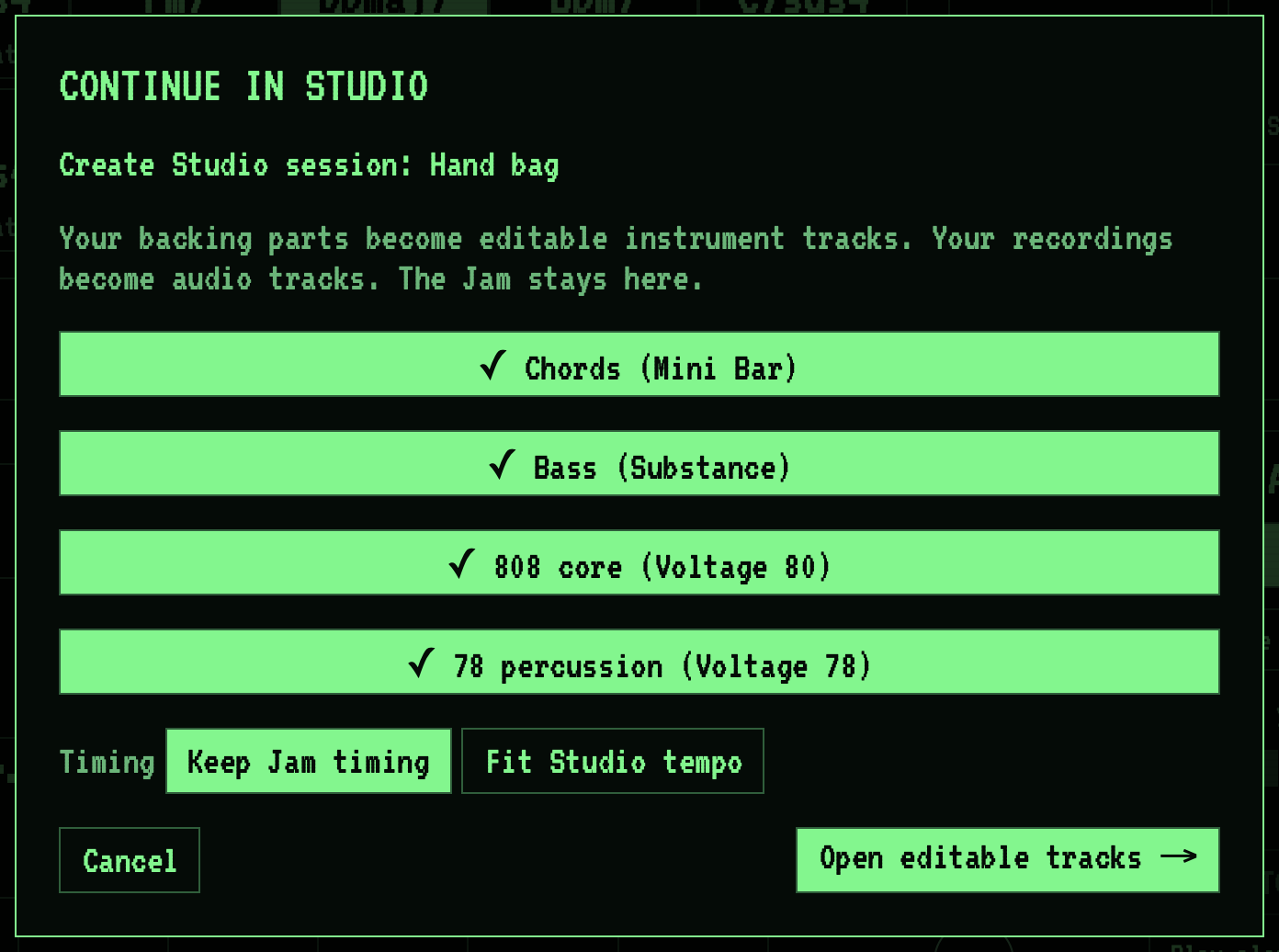
- Finish any chord preview, then click Create Studio session → if no Studio session is open, or Add to Studio session → if one is open.
- Review the destination named in CONTINUE IN STUDIO before continuing. Check the backing parts and active recordings; click each row to include or skip it. A check mark identifies an included row. Muted parts and takes recorded with an earlier idea start skipped.
- Next to Timing, choose Keep Jam timing to keep the material at the speed you played it, or Fit Studio tempo to place the parts on the session's tempo. Fitting the tempo works for the backing parts and recorded MIDI, not for recorded audio.
- Click Open editable tracks →, or Cancel to go back.
Head Chef brings Studio forward and leaves the Jam window open. If a session is open, the new tracks start at the playhead. If no session is open, Head Chef creates one at the jam's tempo; an audio-only free-time jam gets 120 BPM in 4/4.
Backing parts become editable instrument tracks with the matching sounds, including your selected chord sound, your Substance or Rubber Bass voice and your drum sound. An instrument already stored in the jam keeps its complete sound settings and MIDI notes when transferred. Audio stored in the jam becomes copied audio media that remains in the session if the jam is later removed. Empty takes have no recorded sound to transfer; skip them to open the backing parts. Audio with a different sample rate from the session is refused before tracks are added.
Explore Studio material in Jam #
- In Studio, click Explore in Jam… in the edit toolbar above Arrange.
- Next to Destination:, choose New Jam or Current Jam (separate idea) as the review's destination.
- Click Bring into Jam.
Use the Jam Window #
Jam always uses its own window, so you can work side by side with Studio or keep Studio closed while you jam.
- Click Jam ↗ in Studio to open or bring forward the Jam window.
- Use Studio to bring Studio forward while leaving Jam open.
- With Jam active, press Space to play or stop, ⌘S to save the jam, or ⌘W to close its window. Closing stops Jam playback and keeps the open jam available when you reopen the window. Opening editable tracks brings Studio forward with your new tracks.